Users
Manage accounts and access
User accounts are managed centrally for each company on the CausewayOne platform.
Ensure the correct company is selected in the CausewayOne header (top-right). If you're a company administrator, select Console in the sidebar, then Users in the left panel.
Add user
To add someone to the company:
-
Select Add user. Fill in their name and email address.
-
Select one or more roles. These determine the applications and features the user can access. Select Expand beside a role to view its description.
-
Select any number of projects. These are data silos the user can access.
-
Select Add to finish.
The user is notified by email. If they're new to CausewayOne, they will be invited to join the company and set a password for their new account.
Manage users
Sort users by name or email using the column headers. Filter users by keyword using the Search.
To manage a user, select an action:
-
Edit - change the user's details, roles and projects. Users can change their own password via My profile (select initials in top right) or when signing in (select Forgot your password?).
-
Remove - remove the user from the company, without deleting their account.
Roles
Assign the Asset Strategy Standard User role as a baseline, plus any additional roles as needed. For more granular permissions, see User Groups.
| Module | Feature | Standard User | Reports User | Analysis User | Management User | Administrator |
|---|---|---|---|---|---|---|
| Explorer | ||||||
| View and Export Layers | ||||||
| Add Layers and Folders | ||||||
| Manage Layers and Folders | ||||||
| Reports | ||||||
| Analysis | ||||||
| Management | ||||||
| Manage User Groups |
To learn more about managing your company, see the CausewayOne Documentation.
Standalone access
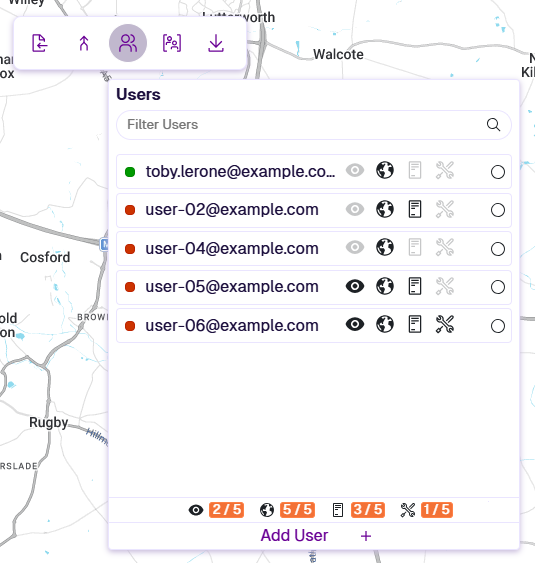
If you have standalone access to Asset Strategy, you can select Users in the Management toolbar (not visible in CausewayOne). This lets administrators manage user accounts and assign module licences.
Licences are identical to the roles above, just named differently, e.g. Explorer = Standard User.
Each user in the dropdown displays their online status and assigned licences. The bottom summary bar shows licence usage across all users.
Add user
To add a standalone user:
-
Select Add User at the bottom of the Users dropdown.
-
Complete the following fields:
-
Email address
-
First / Last Name
-
Password - you must enter a temporary password. When the user first signs in, they will be prompted to change it.
-
Notify User - if set to Yes, an email will be sent to the user.
-
Can Access? - select each module license required by the user. Explorer is always required.
-
-
Select Save to finish.
Manage users
Select a user in the dropdown to view and edit their details. Unlike CausewayOne, users cannot change their own password! Please inform users of any account changes (they won't be notified automatically).
To delete a user, hover over them in the dropdown and select the Delete button that appears.
Deleting a user is permanent! To restore access, create a new account with the same details.