User Groups
Optional advanced permissions
In CausewayOne, users are assigned Asset Strategy roles based on the modules they require access to. For more granular control, you can extend these standard permissions with User Groups. To enable this feature for your company project, please contact Causeway Support.
Once enabled, administrators can define any number of User Groups, which apply more precise permissions on top of user roles. This enables access control for individual features and data objects, such as:
-
Features - data import, editing, renaming and other feature-specific actions.
-
Objects - Layers, Layer Folders, Reports, Treatment Sets, Works Plans and data sources.
Any objects created by a user are private by default, visible only to the owner and administrators. The owner can edit, delete, and run Works Plans on private objects, then share them with a User Group when ready. Group members can share objects further with other groups they belong to, though objects can be returned to private ownership at any time.
To manage User Groups, your user account must have the Asset Strategy Administrator role.
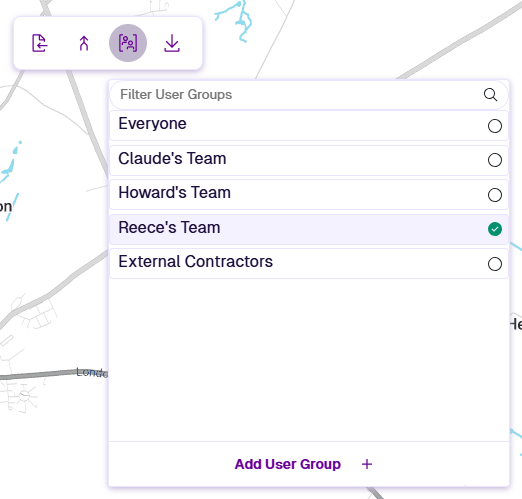
Manage User Groups
Select a User Group in the dropdown to view and edit its details.
To delete a User Group, hover over it in the dropdown and select the Delete button that appears.
Add User Group
To create a new User Group:
-
In the Management toolbar, select User Groups and then Add User Group in the dropdown.
-
Enter a name and select OK.
-
Under the Users list, select Add. Select the users that will belong to the group.
-
Under each feature/object list, select Add to select the things you want users to access.
-
Select Save to finish.