Super-Section Layers
A simple version of your Network
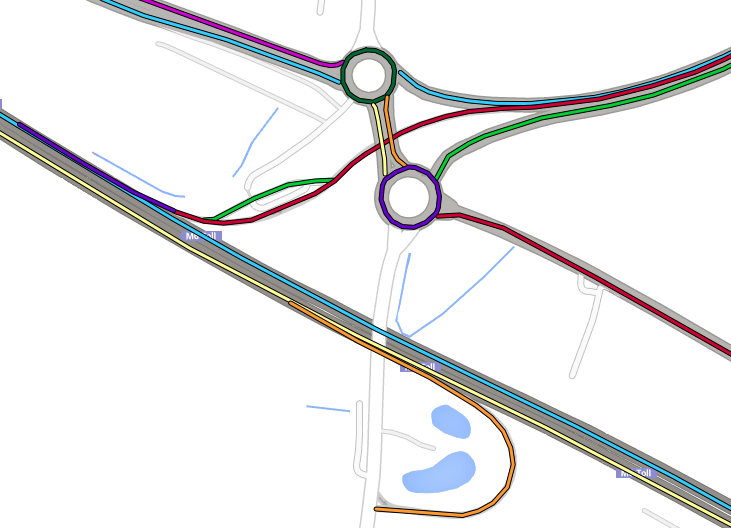
Once a Section Merge is completed, the result is a Super-Section Layer. This is a representation of your Network where adjacent Sections have been joined into longer, continuous segments with no junctions or loops. You can visualise the Layer on the map and use it as the basis of a Treatment Set in Analysis.
View in Explorer
To view a Super-Section Layer on the map:
-
In the Explorer toolbar, open the Layers dropdown.
-
Open the Network folder and ensure the correct one is active.
-
Open the Overlay folder and select the Super-Section Layer (same name as its merge configuration).
-
Open the Active Layers folder and hover over both Layers to compare them.
Super-Sections are colour-coded, so that neighbouring Super-Sections are visually distinct. You can see which Sections form each Super-Section and their order and direction within it.
Information
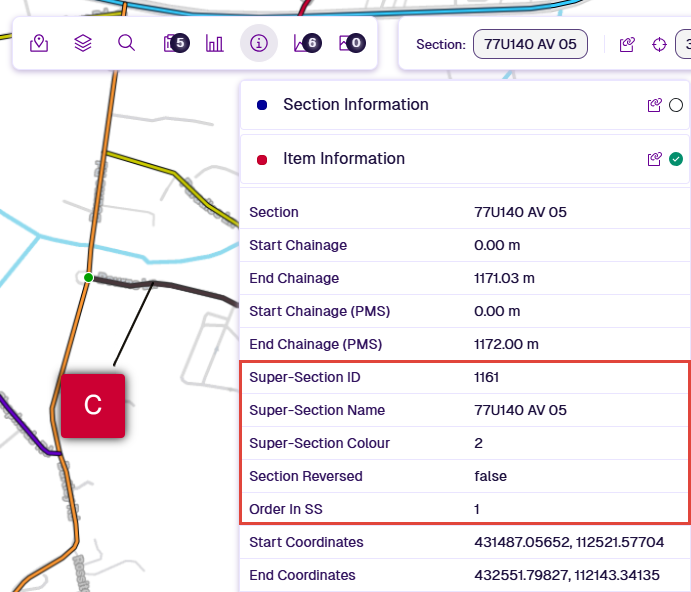
To view the Super-Section details of a Section:
-
Select a Section to enter Interaction Level.
-
Select the item pop-out for the active Super-Section Layer on that Section.
-
In the Explorer toolbar, select Section Details and then Item Information.
Use in Analysis
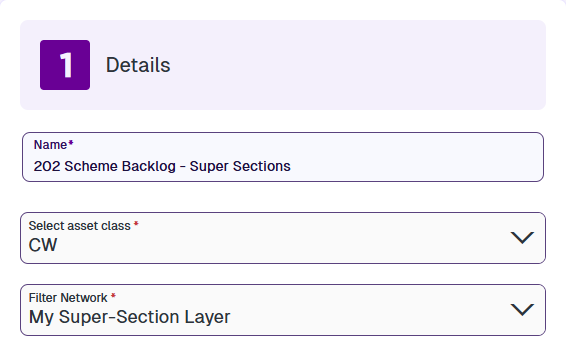
While a Super-Section Layer isn't strictly a Network, it can be used as the Filter Network of a Treatment Set in Analysis. This allows Treatment schemes to span multiple Sections within a Super-Section. See Create a Treatment Set.
Once a Treatment Set or Works Plan is built, you can explore its generated Treatment schemes using Layers and Reports. Each scheme has a unique ID. If a Treatment scheme for a Super-Section spans multiple Sections, it is divided into multiple Treatment items (one per Section) with the same Scheme ID.
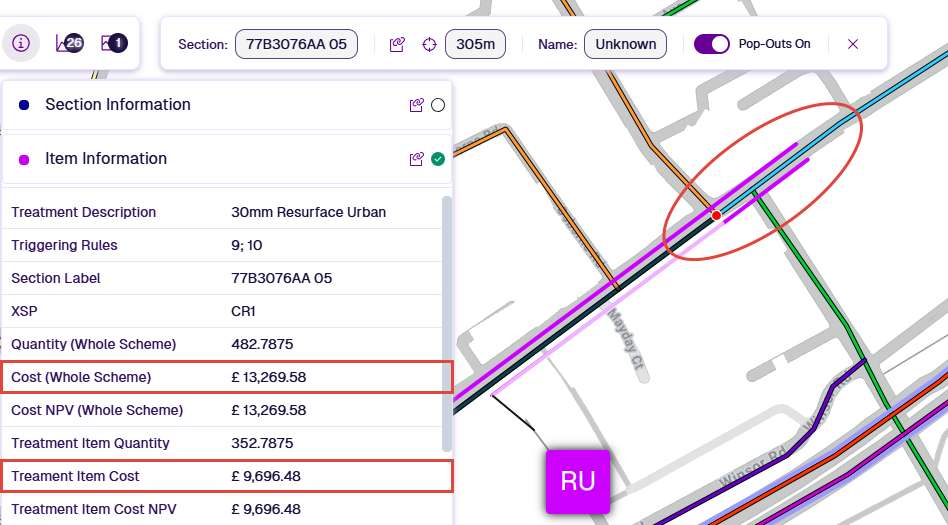
In the image below, the selected Section has purple RU Treatment schemes that seemingly extend beyond its red endpoint. This indicates that the Section and its neighbour (light blue) belong to a Super-Section. Each Treatment scheme actually exists as two Treatment items, one either side of the red endpoint. This is why the selected Treatment item is only highlighted on the active Section.
The Item Information also reveals the Treatment Item Cost is less than the Cost (Whole Scheme), confirming that the selected Treatment item is part of a larger scheme.
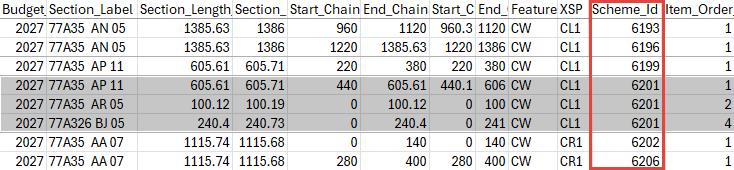
If you download a Treatment Set Report or Works Plan Report as a CSV, sort by the Scheme_Id column to find Treatments on Super-Sections.