Group Merging
Merge only within specified groups
For this Section Merge method, you supply a grouping file (or an existing Layer) that assigns a Group ID to each Section.
The grouping file must have a Group ID field (numeric or text), with a data item (row) for each Section that may be merged. Only Sections with the same Group ID are candidates for merging. This gives you control over which Sections can be merged, e.g. group by road name or number.
Sections without a Group ID remain unmerged. Choose to include them as-is or exclude them from the Super-Section Layer.
Merge rules
Two Sections are only merged if they pass the following rules.
| Rule | Description |
|---|---|
| Group ID | Both Sections have the same Group ID value |
| Max. Gap Between Sections | Their closest endpoints are within the configured maximum distance |
| Max. Angle Between Grouped Sections | The angle of deviation at the join is below the configured maximum. Sections are perfectly aligned at 0 degrees |
| Direction match (optional) | Both Sections flow in the same direction when joined |
Where more than one Section is a candidate for joining (e.g. at a fork), the pair with the smallest endpoint distance and angle of deviation is chosen.
Sections are merged until the longest possible Super-Section is formed. In some cases, all Sections with the same Group ID cannot be combined into one Super-Section. The configured rules may be too strict, the grouping file contains errors, or the split is intentional. When this happens, multiple Super-Sections are generated for the same Group ID.
For example: grouping Sections by road number (A43, M6), with a small max gap (3 m) and a tight max angle (20 degrees), typically produces two long Super-Sections per road (one per direction), plus smaller Super-Sections for slip roads and other branches.
Set up a Group Merge
-
Import your grouping file to generate a grouping Layer.
-
In the Management toolbar, select Section Merge and then Add Section Merge Rules.
-
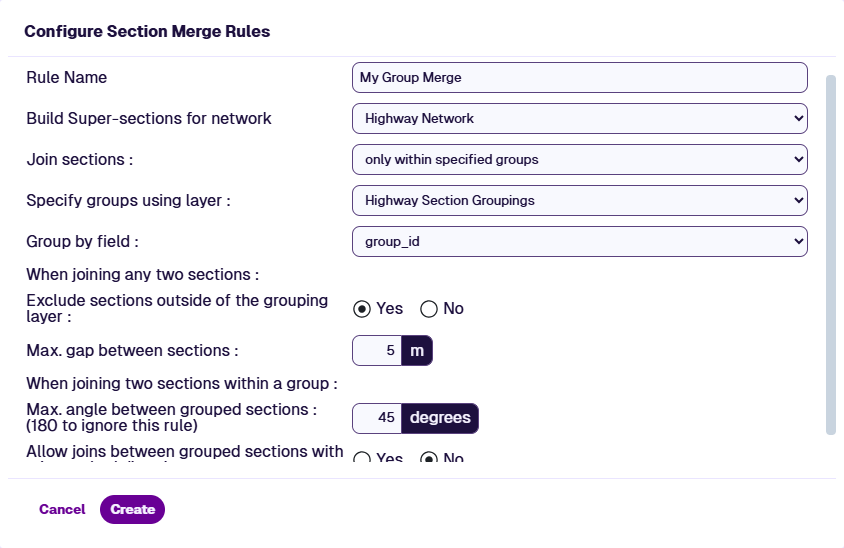
Configure these general settings:
-
Rule Name - enter a descriptive name for the new Super-Section Layer.
-
Build Super-sections for network - choose the Network Layer you want to merge.
-
Join sections - only within specified groups.
-
-
Configure these Group settings:
-
Specify groups using layer - select the Layer generated from your grouping file import in step 1.
-
Group by field - select the field containing the Group ID.
-
Exclude sections outside of the grouping layer - if enabled, Sections without Group IDs are excluded from the Super-Section Layer. If disabled, they are included as individual Super-Sections.
-
Max. gap between sections - maximum endpoint distance for two Sections to be considered for merging. Set between
1and500metres. Keep this small to avoid unintended merges. -
Max. angle between grouped sections - maximum alignment angle at the join. Set to
180degrees to disable this rule. Angle of deviation is used as the tie-breaker when multiple candidates exist. -
Allow joins between grouped sections with mismatched directions - if enabled, merge Sections regardless of direction (end-to-end / start-to-start joins). If disabled, only merge Sections with the same direction (start-to-end / end-to-start joins).
-
-
Select Create. When the merge has completed, the new Super-Section Layer can be used in Explorer and Analysis.