Validate and process
Commit your import data
The final step of a data import is to validate its configuration and process the data.
Validate
Open an unvalidated import and select Validate. First, the data is checked for any inherent problems. The import configuration is then checked for validity and any incompatibilities with your Network, e.g. invalid references or geometry, chainage extending beyond a Section.
If a critical problem is found, the import reverts to unvalidated. To view the error message, open the import and read its Last Status.
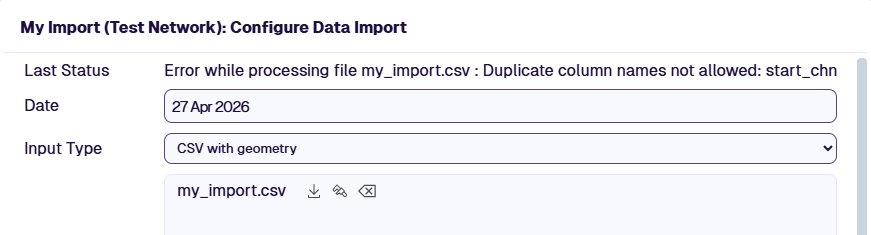
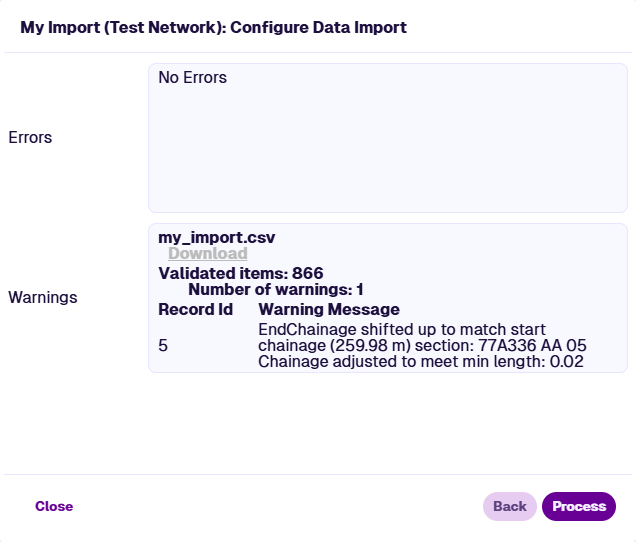
Otherwise, the following summaries are shown:
-
Errors - these data items have major faults and are skipped during processing.
-
Warnings - these data items have minor faults, which may be corrected automatically. They can be processed but check first.
If the number of errors or warnings exceeds 50, select Download for the full log file.
Tolerance errors indicate that Section lengths differ from the digitised lengths in your Network. To resolve this:
-
Review flagged items in the import data and fix their values.
-
Include a Section Length field in the import data where possible.
-
In the Configure Data Import window:
-
relax your tolerances, see With references.
-
increase your distances, see Without references.
-
Selecting Back will revert the import to unvalidated.
Process
Open a validated import. After reviewing any errors or warnings, select Process to commit the data to your company project:
-
A default Layer is created in the Overlay or Custom Layers folder. You can restyle it or create more Layers from the imported data source. With the Layer enabled, select a Section to view its data items.
-
Fields marked Graphable appear as a Graphing source for Sections containing the relevant data.
-
Fields marked In Scheme appear as Condition Parameters in the Analysis module (in the Misc folder).
Once processed, the import remains in the Data Import dropdown for reference but cannot be edited.