Configure fields
Describe your import data fields
The next step of a data import is to configure its fields. Open an unvalidated import and select Configure Fields beside an uploaded file.
Use the following settings to match import fields to Asset Strategy fields and configure their properties. You can save the finished configuration as a template for future use. Select Save to finish.
You can change these settings at any time before validating the import.
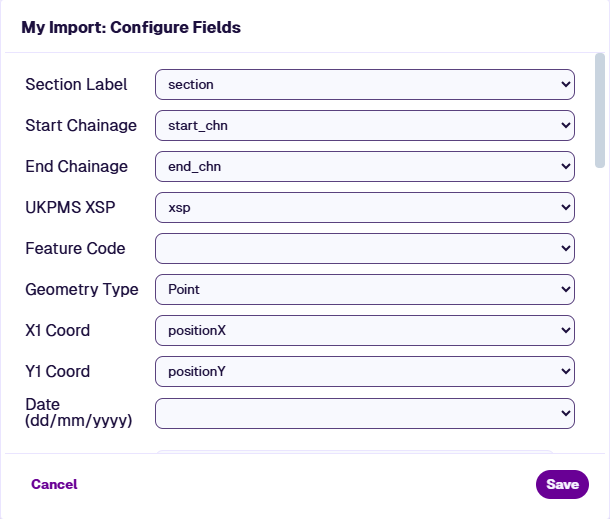
Match fields
For each Asset Strategy field, choose the corresponding field in your import data (GIS: attributes, CSV: columns).
| Field | Applies To | Notes | Template Key |
|---|---|---|---|
| Section Label | All | Required to use references | IsSectionLabel |
| Start Chainage | All | Without End Chainage, the item is a point | IsStartChain |
| End Chainage | All | With Start Chainage, the item is a line. If neither is provided, the line spans the entire Section | IsEndChain |
| Section Length | References in Data? = Yes | Improves chainage scaling, as the surveyed length may differ slightly from the digitised length in your Network | IsSectionLength |
| UKPMS XSP | All | UKPMS cross-section code. Without item geometry or the Offset field, this determines the item's offset. Can be overridden at the import level. If not provided, the item is placed at the Section centreline | IsUkpmsXSP |
| Feature Code | All | UKPMS asset type code. Defaults to CW. Can be overridden at the import level | IsUkpmsFeatureCode |
| Offset | CSV no geometry | Distance in metres from the Section centreline. Positive = right, negative = left of the Section direction | IsOffset |
| Date | All | Required format: dd/mm/yyyy. If not provided, the item date matches the Date in the import configuration | IsItemDate |
| Geometry Type | CSV with geometry | UI dropdown to show the appropriate geometry fields | |
| ↳ X1 / Y1 Coord | Point or Line | Point: X1,Y1 | csvX1 / csvY1 |
| ↳ X2 / Y2 Coord | Line | Line: X1,Y1 to X2,Y2 | csvX2 / csvY2 |
| ↳ Well Known Text | WKT | A Well Known Text string, e.g.LINESTRING (30 10, 10 30, 40 40) | csvWKT |
Common XSP Codes
An XSP (Cross Section Position) describes where something sits across the width of a road.
Carriageway lanes are numbered from the nearside edge toward the centre. For single carriageways, use CL codes only. Features outside the carriageway (kerbs, footways, verges) use Off Carriageway Position codes, numbered outward from the carriageway.
Minimal codes give a generic position for the whole carriageway or one side when precise position isn't important. Asset Strategy simplifies the UKPMS Minimal set to just three codes (UKPMS codes like LK, LF, LV aren't accepted).
For full details, consult the UKPMS user manual.
| Cross Section Position (XSP) | Left | Right | Minimal |
|---|---|---|---|
| Carriageway Centre | CC | — | C |
| Carriageway Lane 1 | CL1 | CR1 | C |
| Carriageway Lane 2 | CL2 | CR2 | C |
| Carriageway Lane 3 | CL3 | CR3 | C |
| Hard Shoulder | LH | RH | C |
| Off Carriageway Position 1 | L1 | R1 | L/R |
| Off Carriageway Position 2 | L2 | R2 | L/R |
| Off Carriageway Position 3 | L3 | R3 | L/R |
Feature Codes
A Feature is a physical part of the road. For full details, consult the UKPMS user manual.
| Feature Name | Feature Code | Description |
|---|---|---|
| Carriageway | CW | The main running surface for vehicles. |
| Footway | FW | Areas designated for pedestrian use. |
| Kerb | KB | The kerb or channel line (often includes drainage). |
| Verge | VG | Grassed or soft-landscaped areas. |
| Cycle Track | CT | Dedicated paths for bicycles. |
| Asset Strategy only: | ||
| Bridge | BR | Bridge structures. |
| White Markings | WM | Painted road markings. |
When importing accident data for a SCRIM Prioritisation Model, the import data must have a field named Date mapped to the Date field here. Otherwise, the imported Layer won't appear in the Accident Layers dropdown.
Field properties
To apply a property to specific import fields, select Add beneath its list, then select the fields.
| Property | Notes | Template Key |
|---|---|---|
| Units | Specify the units of numeric fields for display purposes | Units |
| Decimal Places | Specify the decimal places of numeric fields for display purposes (values are not truncated). The default is 10 | NumDP |
| Graphable | Make numeric fields available in Graphs | IsGraphable |
| Searchable | Make text fields searchable in Explorer | IsSearchable |
| Description | Change the display name of specific fields. For an In Scheme field, this becomes the Condition Parameter name | Desc |
| In Scheme | Mark fields as Condition Parameters for use in Analysis. The Feature Code of the import configuration determines the Asset Groups they can apply to (not the Feature Code field here). Items require a valid UKPMS XSP | InScheme |
| Severity Order | For In Scheme fields only. Set each field as Ascending (higher values are worse - default) or Descending (lower values are worse) | SeverityAsc |
| Custom Markup | Specify fields containing a URL for an imported image or link. | HasCustomMarkup |
| Data Type | Config file only. Values: Integer, Real, String, Time, Datetime. Leave blank for auto-detection | Type |
Configuration template
To save the current field configuration as a template, select Generate template beside the uploaded file. This downloads a .Config.csv file that stores the mapping of import fields to Asset Strategy settings. It can be edited directly in Excel.
To apply a template to an unvalidated import, select Add File(s) and upload the .Config.csv file. In the Configure Fields window, verify that the applied configuration is correct. If the template references fields not present in the import data, validation will fail.
Example
The following table illustrates the template format. Columns are import fields, rows are Asset Strategy settings.
| section | start_chn | end_chn | xsp | net_seclen | geo_wkt | scan_rut | scan_tex | |
|---|---|---|---|---|---|---|---|---|
| Desc | Section Length | Rutting | Texture | |||||
| Type | ||||||||
| Units | M | M | MM | MM | ||||
| NumDP | 2 | 2 | 3 | 3 | ||||
| IsSectionLabel | 1 | |||||||
| IsStartChain | 1 | |||||||
| IsEndChain | 1 | |||||||
| IsUkpmsXSP | 1 | |||||||
| IsUkpmsFeatureCode | ||||||||
| IsSectionLength | 1 | |||||||
| IsGraphable | 1 | 1 | ||||||
| IsSearchable | 1 | |||||||
| InScheme | 1 | 1 | ||||||
| SeverityAsc | 1 | 0 | ||||||
| csvWKT | 1 |