Navigation
Find your way around
Asset Strategy is an application on the CausewayOne platform. It shares the same style and layout as other CausewayOne applications. The user interface has the following key areas.
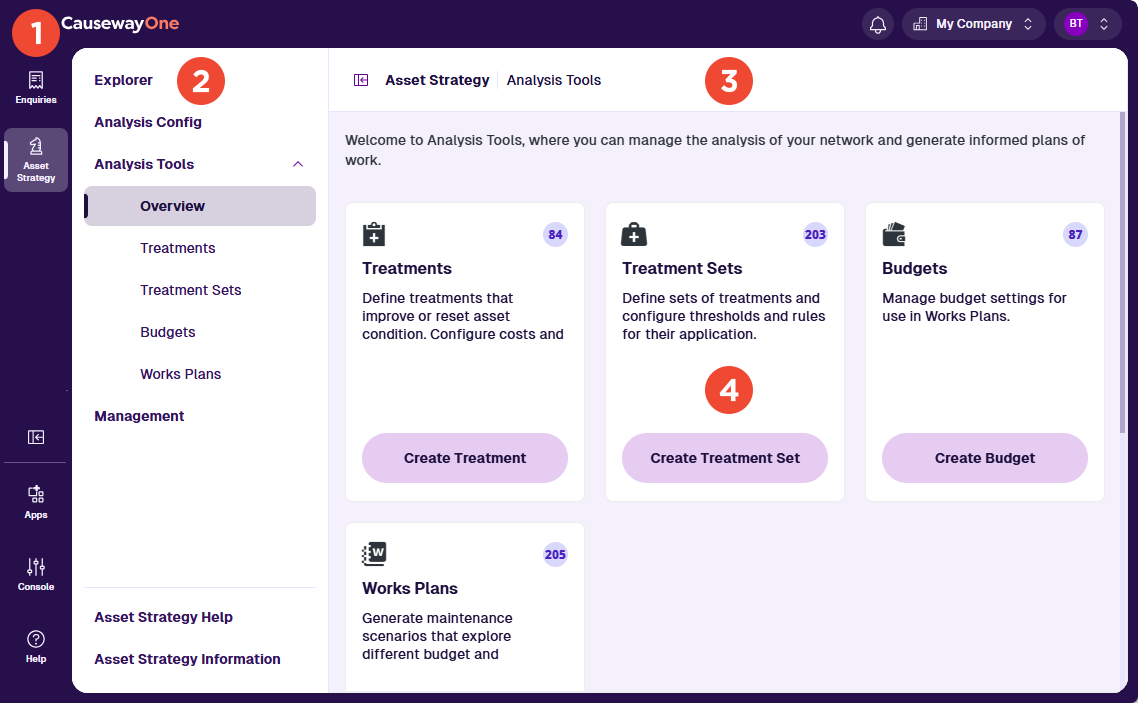
1 CausewayOne sidebar / header
These purple bars let you navigate and control your CausewayOne experience.
Use the sidebar to switch between your workspaces and applications. The Sidebar Toggle button lets you collapse it for extra space. The lower buttons let you discover other CausewayOne applications, administer your company (if you have the role) and get help.
Use the top header to access your notifications, switch companies (if you belong to several) and configure your account profile. Each CausewayOne company has its own self-contained database for storing Layers, Treatments, Works Plans and other Asset Strategy data.
To learn more, see the CausewayOne Documentation.
2 Left panel
Use the left panel to navigate Asset Strategy:
-
Explorer - explore your network on the map, manage data layers and inspect sections.
-
Analysis Config - configure asset deterioration curves, location priorities and performance strategies.
-
Analysis Tools - define treatments, trigger rules and budgets to generate multi-year works plans.
-
Management - import data, merge sections and manage user groups.
Some of these modules may be unavailable, depending on your user account permissions. To learn more about these modules, see Overview.
-
Asset Strategy Help - learn what Asset Strategy can do and how to use it effectively. To raise a help request, select Help in the CausewayOne sidebar.
-
Asset Strategy Information - view the application version and build date.
3 App bar
Use the white app bar to perform actions. The Panel Toggle button lets you hide the left panel for extra space and the breadcrumb path lets you navigate backwards.
When you open an Analysis Tool, the app bar displays context-sensitive actions:
-
Select Create to configure a new object.
-
With an object open:
-
Clone - configure a copy of the current object.
-
Rename - change the object's name.
-
Delete - permanently delete the object.
-
-
With a Treatment Set or Works Plan open, select Run to build it. When completed:
-
View report - see the results in a formatted report.
-
View in explorer - visualise the results on the map.
-

If you're in standalone mode, the app bar also lets you switch projects and log out.
4 App area
This area displays the content of the module selected in the left panel. This typically includes a large map area with a floating top toolbar (except for Analysis Tools). See Map navigation.