Choose a Network
Work with multiple asset infrastructures
The active Network determines the data you're working with.
A company project has one or more Networks. Each Network represents a physical area of asset infrastructure that your organisation is responsible for. It acts as a top-level container for your asset data, which is divided into Section lengths.
Networks exist as a special type of Layer, which appears above the basemap imagery but underneath all other Layers. Only one Network Layer can be active at once. If multiple Networks are available, one is loaded by default.
To change the active Network:
-
Select Layers in the Explorer toolbar.
-
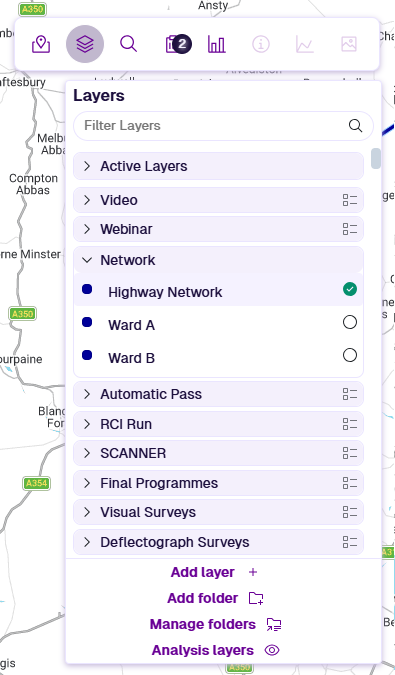
In the dropdown, open the Network folder. The current Network Layer is highlighted with a green checkmark.
-
Select another Network Layer.
The map zooms to show the chosen Network in its entirety.
This doesn't affect which Reports are available, except for Treatment Set Reports and Works Plan Reports. If you select a Section to view its Section Details Report, the correct Network Layer must be active.
Subnetworks
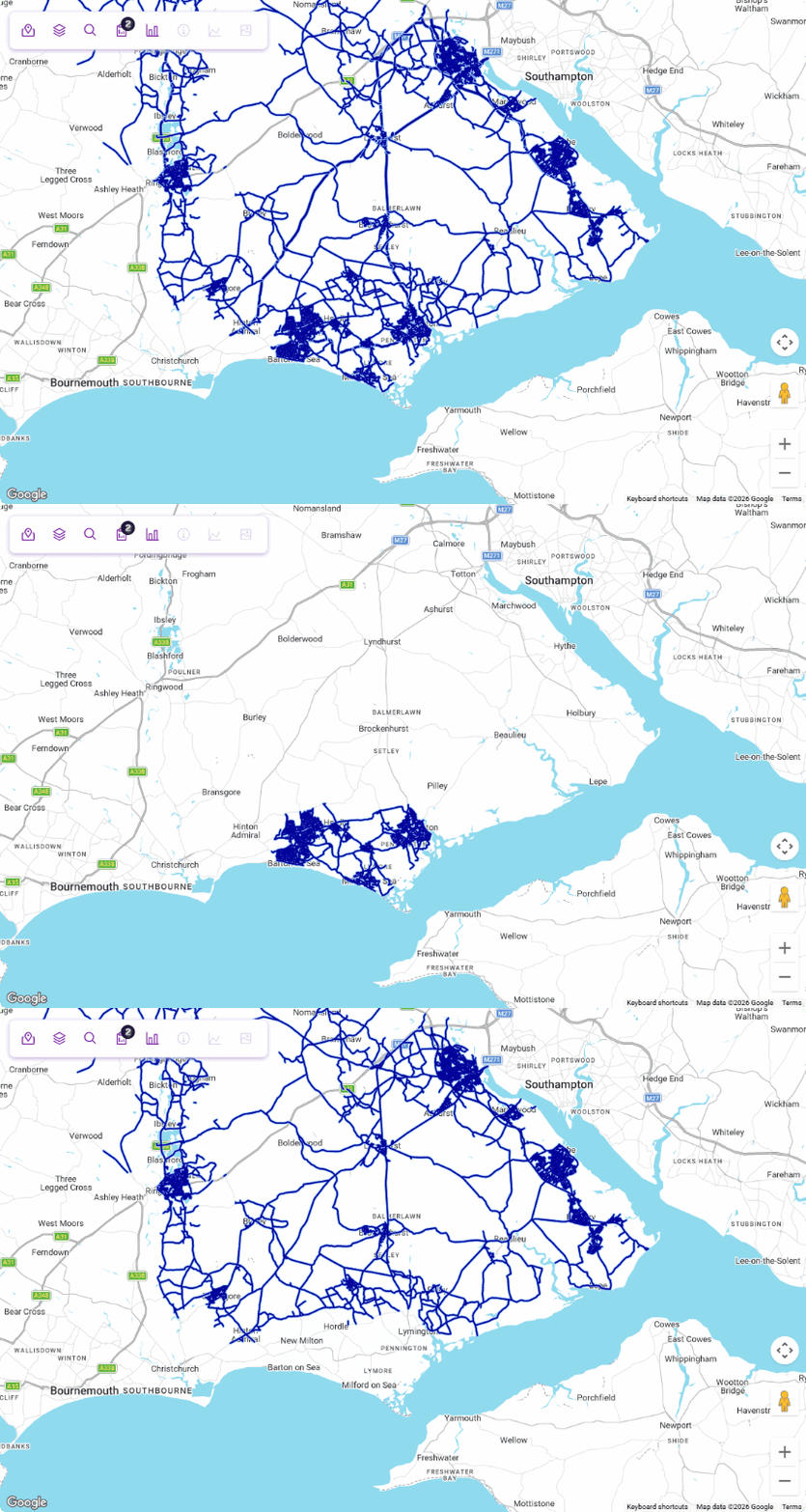
Upon request, a Network can be divided into smaller, more manageable Subnetworks. These are provided as additional Network Layers, making it possible to focus on specific regions or zones. You can:
-
filter map data to a specific area
-
define Budgets at a more granular level
-
view Treatment Set and Works Plan Summary Reports at Subnetwork level
To set up one or more Subnetworks, contact Causeway Support.
Network updates
It isn't possible to create or edit Networks directly. Instead, please contact Causeway Support to arrange a Network update. Network Layers can be exported and edited to reflect boundary changes, before being reimported by our Support team.
After a Network is updated:
-
The old Network is archived and no longer appears in the Layers dropdown.
-
Existing Treatment Sets, Works Plans and their Reports still reference the old Network. If you edit or clone one, you must choose a new Network.
-
Sub-budgets that reference the old Network become read-only.
Archived Networks can still be selected on Summary Reports (for comparison) and Layer Exports (under Advanced Options).