Sharing Layers
Let other users access a Layer
If User Groups is enabled, a Layer is only visible to its creator (owner) by default. For the Layer to be visible to other users, you can share the Layer with a User Group.
Sharing a Layer enables other users to view the Layer and use its underlying data source to build a new Layer. However, only you and administrators can edit, delete, rename, and move a shared Layer that you created.
You can also build a Layer that is based on a data source that another user has shared with a group that you belong to.
If User Groups are not enabled, all Layers can be viewed and edited by all users.
Share a Layer
To share one of your Layer with other users:
-
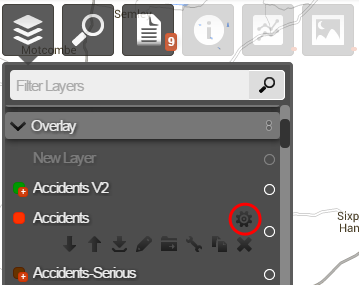
Select the top Layers icon. In the dropdown, open the folder containing the relevant Layer.
-
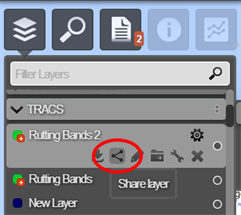
Hover over the Layer, select its Options icon, and then select the Share Layer icon that appears below it.
-
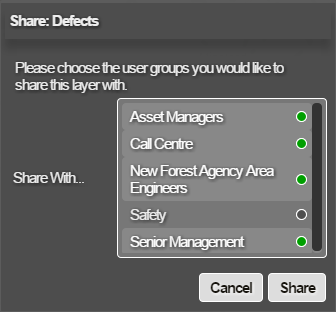
In the Share Layer window, select one or more user groups in the list and then select Share.
Unshare a Layer
To unshare one of your Layers, so that it can only be accessed by you and administrators:
-
Select the top Layers icon. In the dropdown, open the folder containing the relevant Layer.
-
Hover over the Layer, select its Options icon, and then select the Share Layer icon that appears below it.
-
In the Share Layer window, deselect all user groups in the list. Select No Value Selected and then select Share.
If a Layer is unshared, the corresponding data source will remain shared. Layers can also be unshared by administrators in the Management module.