Moving Layers
Moving a Layer between folders
You can move an existing Layer from one folder to another. Be aware, this change will affect all users in your company project, and you may not have permission to move some Layers.
If a Layer is used in the Analysis module, such as a Prioritisation Layer used for a Works Plan, moving the Layer won't affect the Works Plan.
info
Administrators can also reorder the Layers within a folder.
To move a Layer:
-
Select the top Layers icon. In the dropdown, open the folder containing the relevant Layer.
-
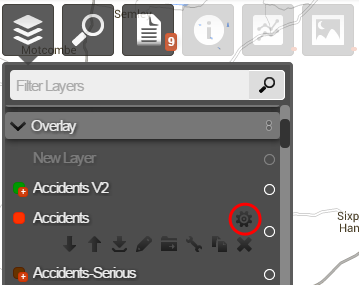
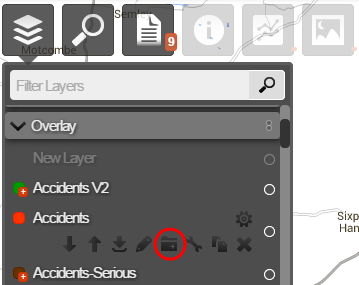
Hover over the Layer, select its Options icon, and then select the Move Layer icon that appears below it.
-
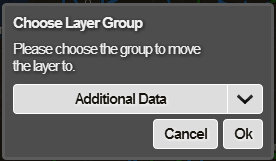
Choose a folder to move the Layer into and select OK.