Number Range Layer Styles
Defining a Layer Style from Number Ranges
You can create one or more styles for a Data Layer or Yotta Asset Layer based on number ranges. The style checks if numeric values within a specific range are present in the data for each subsection of your Network assets. When the Layer is active, each subsection will be coloured according to the last style that triggered on it.
To create a Layer with Number Range styles:
-
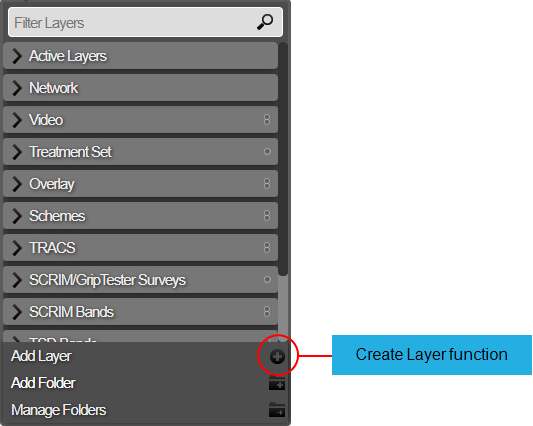
Select the top Layers icon. In the dropdown, select Add Layer.
-
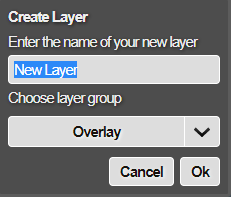
Enter a unique name for the new Layer, based on the data it will represent. Choose the Layer Group folder it will belong to. Select OK to continue.
-
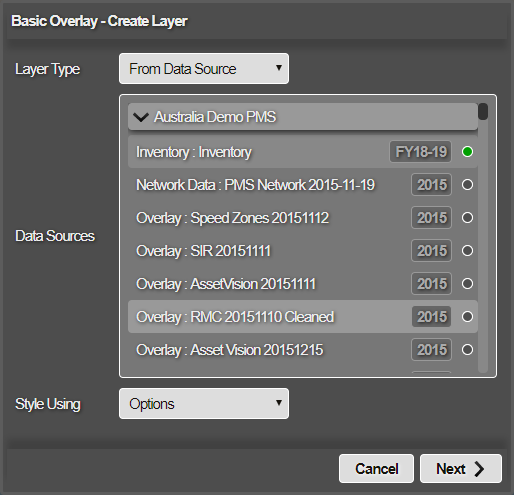
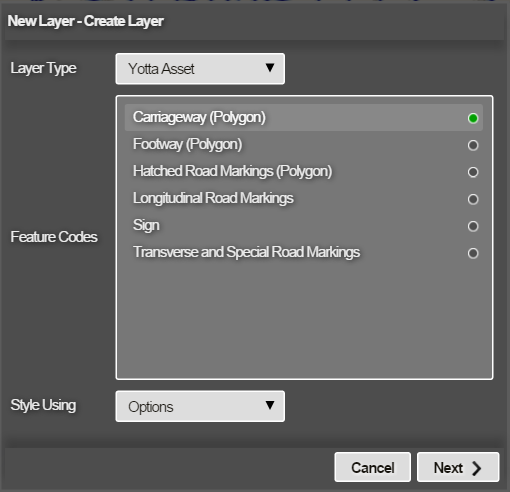
In the Create Layer window, select the Layer Type box and choose one of the following:
From Data Source
Proceed to choose the relevant data source in the list. To add a new data source, see Data Import.
Yotta Asset
Proceed to select one or more Feature Codes in the list to base the new Layer on.
-
Select the Style Using box, choose Number Ranges and then select Next.
-
In the Options window, select the top box and choose a type. The available types correspond to the column headers in your chosen data source or Yotta Asset. Fill in the left and right boxes of the number range with a minimum and maximum value respectively. To change the number range's colour, select the icon on its left side.
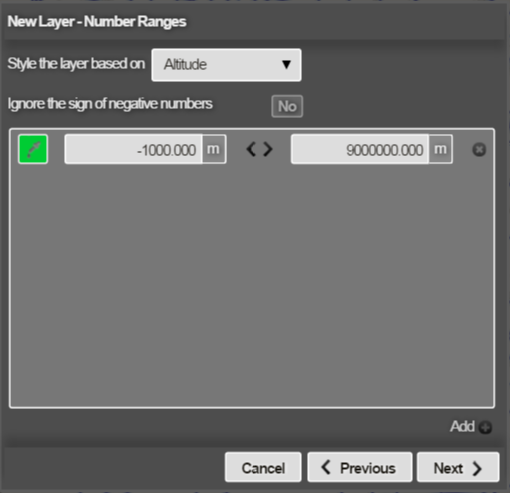
-
To add more number ranges, select Add (bottom-right) and repeat the above step as needed. To remove a number range, select the X icon on its right side. Select Next to continue.
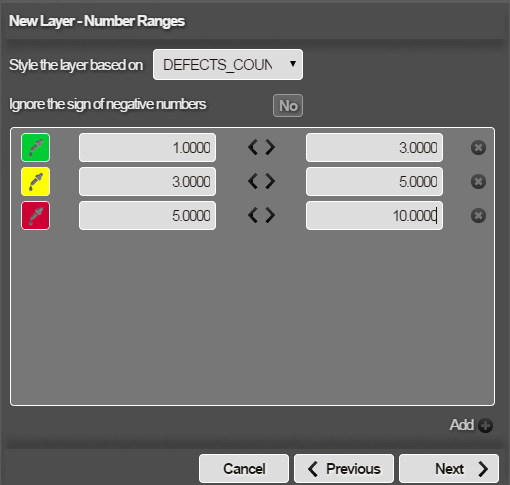
- The Styles window lists the generated styles. Use the up and down arrows to reorder them as needed (the first style is evaluated first). To change the appearance or formula of a style before finishing, select it. See Edit a style.