Layers
Put data on the map
Networks and spatial data can be visualised on the map as Layers. CausewayOne Asset Strategy can store and present many distinct data sources as data Layers, organised under the Layers dropdown.
When you select a Network, the Network is placed centrally within the map. You can then select various Layers of spatial data to display on top of the Network Layer and basemap imagery.
The Layers dropdown
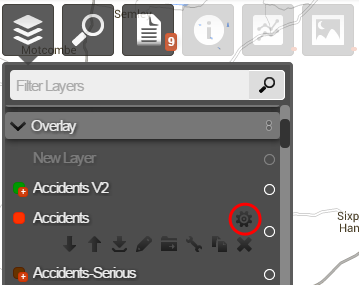
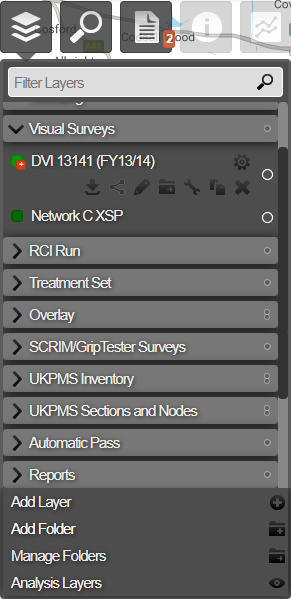
Data Layers in the system are organised into folders. Each folder can contain multiple data Layers. You can create and edit layers.
To see the Layers within a folder, select the folder name. The Layers within the folder are expanded. To close the expanded list of Layers, select on the folder name again. An arrow to the left of the folder name indicates whether the folder is expanded or collapsed.
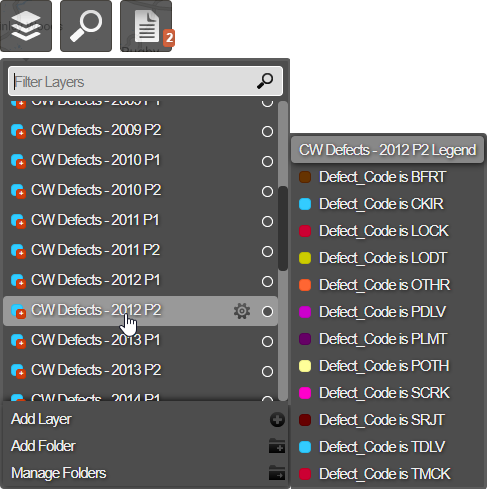
Hover over a Layer name to see a description (legend) of the data that is provided by the Layer. If more than one Layer is active, hovering over a Layer name will isolate the selected Layer on the map.
Some Layer features may be limited by your account's roles. See Users and User Groups.
Searching for a Layer
You can search for a specific Layer if you know all or part of the Layer name:
-
Select the top Layers icon.
-
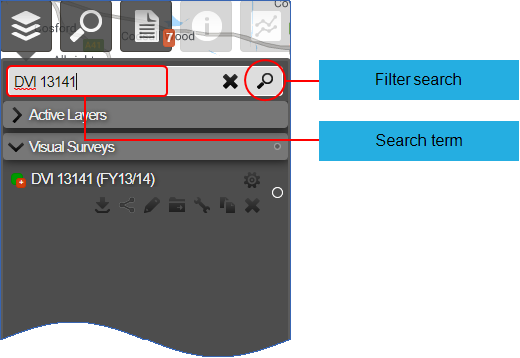
In the Filter Layers search box at the top of the dropdown, enter all or part of the Layer name.
-
Select the Search button or press Enter.
The Layers that contain the search term are listed within their folders.
Layer Options
Each Layer has a menu of actions to perform on the Layer, for example to download, edit, move, rename, share, and delete a Layer. Not all options are available on all Layers and for all users. Layers that derive from survey and other primary data sources and from merged sections are not editable.