Manage Treatment Sets
Access and organise your Treatment Sets
The Treatment Sets in your Horizons project are used to define organised hierarchies of Treatments, along with rules for how those Treatments may be triggered on your Network assets. You can create any number of Treatment Sets, providing your user account has permission to do so.
After a Treatment Set is built and completed successfully, you can view its initial results. However, be aware that Treatment Sets are ultimately intended to be the foundation of a Works Plan.
Access Treatment Sets
To access the Treatment Sets in your Horizons project:
-
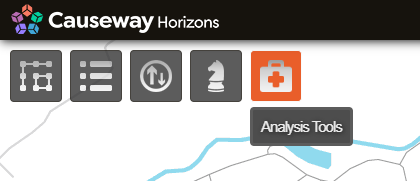
In the Analysis module, click the top Analysis Tools icon. This will open a new browser tab.
-
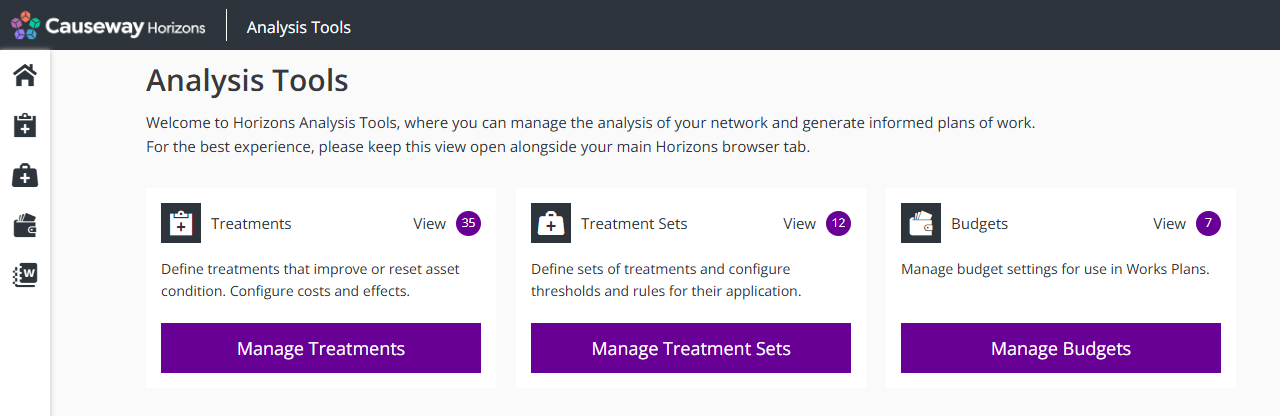
In the new tab, select Manage Treatment Sets on the Analysis homepage, or select the icon in the left toolbar.
-
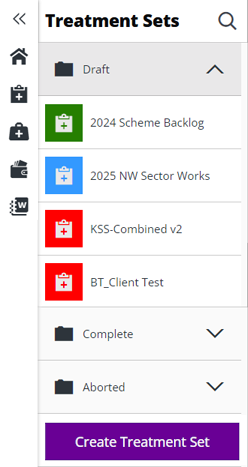
Your Treatment Sets are listed on the left. They're grouped into folders according to their status:
-
Draft - editable Treatment Sets that have not yet been built.
-
Processing - read-only Treatment Sets that are currently building.
-
Aborted - read-only Treatment Sets that were cancelled while building.
-
Complete - read-only Treatment Sets that were built successfully.
-
Failed - read-only Treatment Sets that failed to build.
To filter the available Treatment Sets by keyword, select at the top of the list and start typing in the box that appears.
Select a Treatment Set within a folder to view its details.
-
Edit a Treatment Set
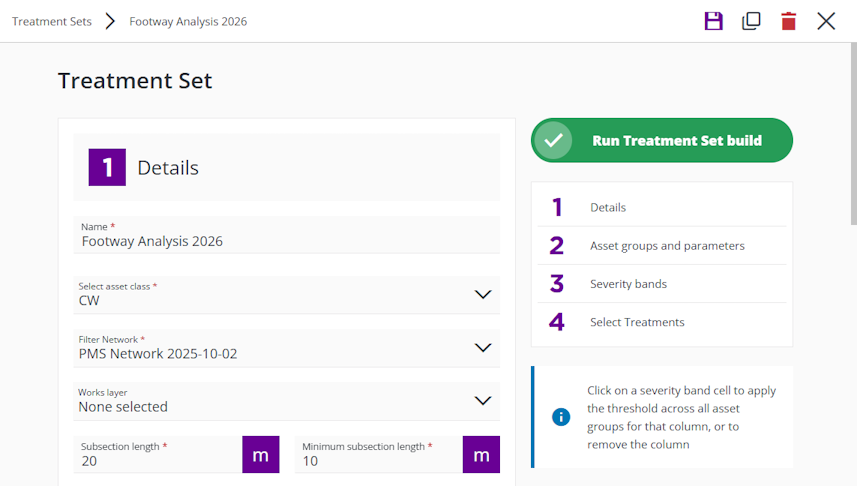
Scroll down to view each settings section of the current Treatment Set. To jump to a particular section, select it on the right.
Only draft Treatment Sets can be edited! To edit any of the selected Treatment Set's settings, select a field and then type or choose a new value for it. To save your changes. select in the top-right corner. Alternatively, select to close the Treatment Set without saving.
For information about the fields in each settings section, see Create a Treatment Set.
When editing or cloning a Treatment Set:
-
If the Filter Network setting references a historic Network Layer that was archived, you must choose a new one.
-
If the Deteriorate to date setting points to an old specific date, it will automatically update to the first day of the current financial year.
Treatment Set actions
To perform an action with the current Treatment Set, select an icon in the top-right corner:
-
Help - learn about using Treatment Sets.
-
Save - commit any changes you've made to a draft Treatment Set.
-
Clone - start creating a copy of the current Treatment Set, with the same configuration as the original. Edit any fields as needed and then select Save to create the new Treatment Set.
-
Rename - change the name of a completed/aborted Treatment Set.
-
Delete - permanently delete the current Treatment Set.
-
Cancel - close the current Treatment Set without saving changes.
Deleting a completed Treatment Set may affect any Works Plans that use it, along with any generated Reports and Layers that reference it.
View results
To view the results of a completed Treatment Set, select an icon at the top:
-
View in Explorer - visualise the initial Treatment schemes on the map.
-
View Report - read about the initial Treatment schemes in formatted reports.