Build a Treatment Set
Perform an initial analysis of your Network
Once a draft Treatment Set is fully defined, you can run it to build a set of initial Treatment schemes for the asset Sections in your Network. This validates the Treatment Set's configuration, lets you view the results as a Layer on the map, and generates a set of formatted reports. This can provide useful feedback for tweaking the Treatment Set settings.
However, it's important to emphasise that these results are unconstrained and should not be used as is! Once you're happy with the initial Treatment schemes, you can then use the Treatment Set as the foundation of a full Works Plan.
Build a Treatment Set
When managing Treatment Sets, open the Draft folder in the left list. Select the relevant Treatment Set and then select Run Treatment Set build in the top-right corner.
Depending on the size of your Network, it may take a while to process! During this time, the Treatment Set will appear in the Processing folder, where you can track its progress.
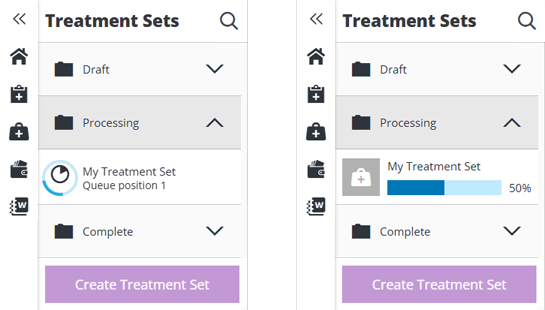
When the build finishes, you'll receive an email notification and the Treatment Set will be moved to the Complete or Failed folder accordingly. If it completed successfully, a Treatment Set Layer will be generated to visualise the initial Treatment schemes on the map. A set of detailed Treatment Set Reports will also be generated.
If you need to make any adjustments to the processed Treatment Set, select it in the left list, and then select the Clone icon in the top-right corner. This creates a new Treatment Set with the same configuration as the original, which you can then edit and build.
Treatment Set processing
Here's an overview of what happens when you build a Treatment Set:
Details
-
Condition data is calculated by deteriorating current values to the configured date.
-
Condition data is optionally updated with extra data supplied in a Works Layer.
-
Each asset Section in the Network is divided into subsection lengths.
-
On each subsection:
-
Zero or more Treatments are triggered by the Condition Parameter values on each XSP (e.g. road lane) of the subsection that has data, according to each Treatment's trigger rules.
-
Major/minor Treatments are skipped if they conflict with the completed/planned works in the Works Layer.
-
An initial Treatment scheme is created for the most severe variant of each triggered Treatment (the highest in its hierarchy chain).
- If Alternative Treatments is enabled, a more cost-effective variant (higher BCR) may be chosen instead.
-
-
Adjacent subsections with the same Treatment scheme are merged.
-
The Treatment schemes of each subsection are progressively merged, according to the Merge when setting of each Treatment type (Efficiency or Proximity):
-
If Merge short schemes is enabled, schemes shorter than their Treatment length min are merged into others.
-
If Whole section merge is enabled, full-length schemes are instead generated for each dominant Treatment in the Section (the highest in its hierarchy chain, triggered by the most subsections).
-
-
If XSP Merging is enabled, Treatment schemes are merged across some or all of the XSPs (e.g. road lanes) of each Section.
-
All Treatment schemes are assigned an ascending Scheme Priority score to reflect their position after being sorted as follows:
- Schemes that meet the Treatment's minimum length and efficiency/proximity criteria
- Last Chance schemes (if untreated, will require a more severe Treatment next year)
- Benefit-Cost Ratio descending
- Treatment Cost ascending
Treatment schemes are also assigned an ascending Condition Priority score after being sorted as follows:
- Benefit-Cost Ratio descending
- Treatment Cost ascending
For detailed information about each Treatment Set setting, see Create a Treatment Set.