Manage Works Plans
Access and organise your Works Plans
Works Plans represent constrained, multi-year Treatment schemes for your Network. Each Works Plan is a configuration of Analysis features. Create any number of Works Plans to explore different investment scenarios and inform your capital planning decisions.
To browse the Works Plans in your company project, select Analysis Tools > Works Plans in the left panel.
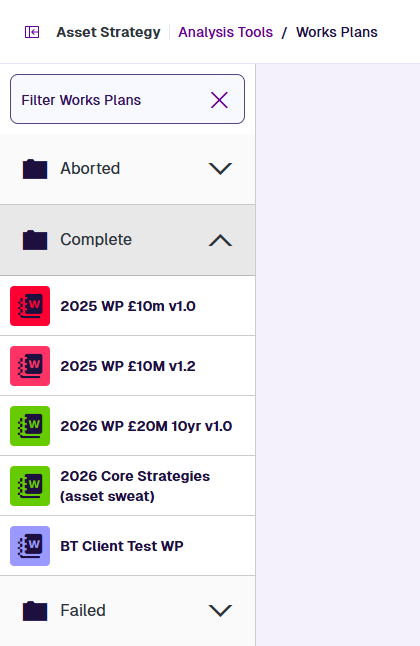
Works Plans are listed on the left. They're grouped into folders according to their status:
-
Aborted - read-only Works Plans that were cancelled while building.
-
Processing - read-only Works Plans that are being built.
-
Complete - read-only Works Plans that built successfully.
-
Failed - read-only Works Plans that failed to build.
To filter the list, type within its top search box. Select Clear to remove the filter.
Open a Works Plan
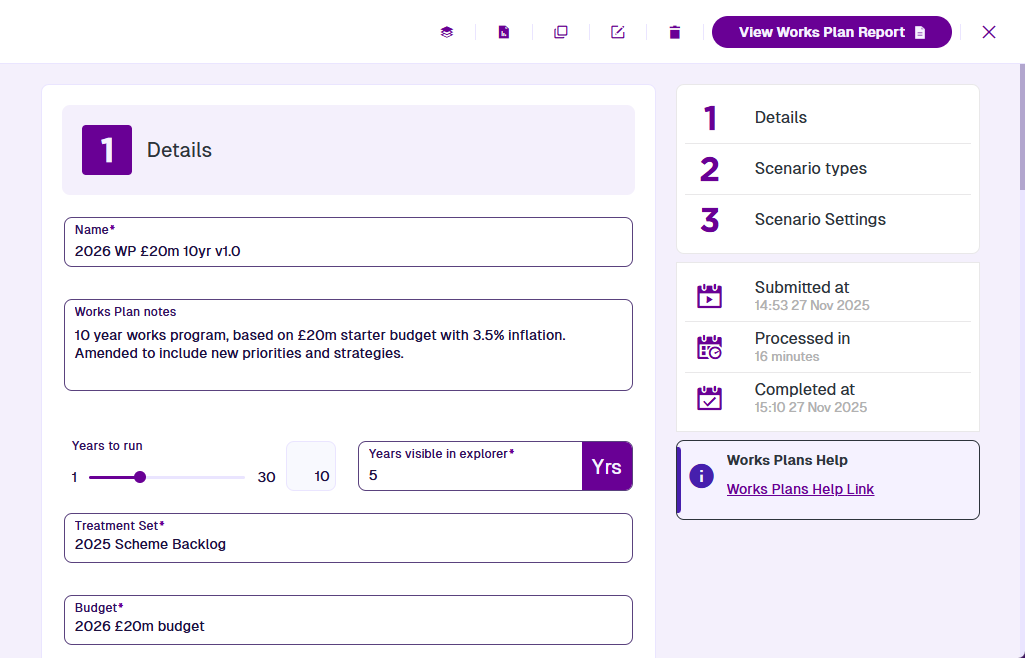
Select a Works Plan in a folder to open its settings.
View the Works Plan
Scroll down to view each settings section of the current Works Plan. To jump to a particular section, select it on the right.
Unlike Treatment Sets, Works Plans are built immediately upon creation, so they can't be edited. However, it is possible to rename and clone existing Works Plans as needed (see below).
For information about the fields in each settings section, see Create a Works Plan.
Works Plan actions
To perform an action with the current Works Plan, select one in the top-right corner:
-
Clone - start creating a copy of the Works Plan. It'll have the same configuration as the original, except for any obsolete/archived settings. Edit any fields as needed and then select Run Works Plan .
-
Rename - change the Works Plan's name.
-
Delete - permanently delete the current Works Plan. If the Works Plan is processing, select Cancel Works Plan Run first.
-
Close - exit the Works Plan without saving.
View results
To view the results of a completed Works Plan, select a button in the top-right corner:
-
View in Explorer - visualise refined Treatment schemes on the map.
-
View Report - read the details of refined Treatment schemes in formatted reports.