Create a Works Plan
Define and build a full Works Plan
To create and configure a new Works Plan, select Analysis Tools > Works Plans in the left panel, then Create Works Plan in the top-right corner.
Fill in the following fields according to your needs. Fields marked with an asterisk * require a value to continue. As you do so, pay attention to any notes and warnings that appear on the right. These explain why some Performance Strategies can't be selected alongside others.
Works Plans use all features in the Analysis module, so make sure they're set up correctly before getting started.
1 Details
Set the number of years you want to plan for. Select a Treatment Set to base the plans on and the Budget available for works:
-
Name * - enter a distinct name that clearly identifies the Works Plan.
-
Works Plan Notes - enter any amount of text to further describe the Works Plan. If you're building multiple revisions or variations of a Works Plan, it may be useful to list the significant differences here.
-
Years to run - drag the slider to set the number of financial years the Works Plan should cover. Typically, asset condition is deteriorated to the start of the first year (see Treatment Set Details). Each subsequent year uses the calculated conditions of the previous year's output.
See diagram
When running a Works Plan, the following process happens:
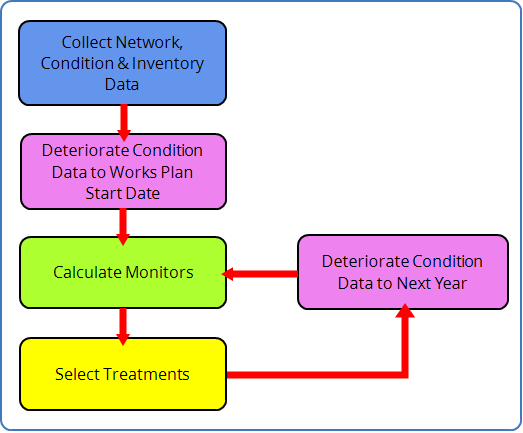
Monitors show condition data for each year before works are completed. Treatments are selected each year to meet the next year's Strategy targets.
You can see monitors after works are completed by running the analysis for an extra year.
-
Years visible in explorer * - after the Works Plan completes, each financial year of the recommended scenario (typically the cheapest that meets all Performance Strategies) can be visualised as a Layer in the Explorer module. Enter the number of years you want to generate Layers for.
ImportantSetting this higher than 6 years may result in slow performance!
-
Treatment Set * - choose a completed Treatment Set from the list. This will serve as the foundation of the Works Plan. It defines which Network assets will be analysed, the hierarchy of possible Treatments and their trigger rules, subsection length, merge details, and plenty more!
-
Budget * - choose an available Budget or Sub-budget from the list. All potential Treatment schemes will be costed against this. If Include Performance Strategies is enabled, you can enable Limited By Budget to prevent that scenario from exceeding the budget amount.
If a Sub-budget is chosen, it isn't possible to select a Backlog Performance Strategy, as a backlog can only be defined against a complete budget.
-
Prioritisation - choose an available Priority from the list. This adds weighting to Treatment schemes at the locations covered by the Priority.
Priority calculation
If Prioritisation is set, a Prioritisation Score is calculated for each potential Treatment scheme.
First, a Priority Score between
0and1is calculated for each subsection in the scheme. This uses the weighting values for each Priority Layer Style that overlaps the subsection, e.g. if all Layer Styles in the Priority overlap the subsection, its Priority Score will be1.The sum of these Priority Scores becomes the Scheme Prioritisation Score. This is added to the Scheme Condition Benefit Score, which ultimately determines the ranking and selection of Treatment schemes in each Works Plan scenario.
2 Scenario types
Select the scenarios to include in the Works Plan. Each scenario takes a different approach to asset management, using its own criteria to select potential Treatment schemes over the specified number of years. Where possible, cheaper schemes are preferred! After the Works Plan has completed, you can view the results of each scenario and compare their performance.
Asset sweating
This scenario targets asset subsections that will benefit most. By default, only Treatment schemes flagged as Last Chance are selected. If they remain untreated, more severe and costly Treatments will likely be required the following year. These schemes are selected in descending order of Benefit-Cost Ratio (BCR) Score until none remain or the full budget is consumed. Other Treatment schemes are deferred and Performance Strategies are ignored.
By delaying Treatments as long as possible, assets are allowed to deteriorate gracefully, maximising their utility and lifespan.
- Include Asset Sweating Scenario - if disabled, this scenario won't be included in the Works Plan.
If Use Residual Budget is enabled in Scenario Settings, any surplus budget is used to fund other Treatment schemes that aren't Last Chance. They are selected in descending BCR order, until the residual budget is consumed.
If Prioritise Schemes by BCR is enabled in Scenario Settings, this scenario will no longer target Last Chance schemes. Instead, all potential Treatment schemes are selected in descending BCR order until the full budget is consumed, regardless of the Use Residual Budget setting.
Worst first
This scenario targets asset subsections in the worst condition, regardless of their Benefit-Cost Ratio (BCR) Scores. Treatment schemes are simply selected in descending order of raw Condition Score (worst first).
If Include Performance Strategies is enabled, worst-first Treatment schemes are selected until all the Strategies are met, even if the budget is exceeded. If Limited By Budget is also enabled, worst-first schemes are selected until the full budget is consumed (there is never any residual budget).
- Include Worst First Scenario - if enabled, this scenario will be included in the Works Plan.
Performance Strategies
This scenario tries to meet all selected Strategies. Each Strategy defines a target to meet for each year of the Works Plan, such as minimising an emission, or keeping a Condition Parameter below/above a threshold. To learn more, see Strategies.
Treatment schemes are selected in descending order of Benefit-Cost Ratio (BCR) Score, with Last Chance schemes given top priority by default. This continues until all Strategies are met, even if the budget is exceeded. If it isn't possible to meet them all, the scenario will determine the most affordable outcome that meets the most Strategies.
-
Include Performance Strategies - if enabled, this scenario will be processed and included in the Works Plan. The following fields will also appear:
-
Limited By Budget - if enabled, the total cost of selected Treatment schemes cannot exceed the budget amount. This prevents the scenario from going over budget. However, Strategies may fail if required Treatment schemes are deferred due to no remaining budget.
-
Selected Performance Strategies - select one or more Strategies to include in the Works Plan. To remove an added Strategy, select Remove.
Details
To add Strategies:
-
Select Add Performance Strategy.
-
In the picker, select a folder's Open button to see the available Strategies of that type:
-
Network - these Strategies set targets for Network-level condition monitors, e.g. 130-01 (A-Roads red-band %), BVPI 224b (U-Roads red-band %). You can select multiple Network Strategies but only for different monitors.
-
Local - these Strategies set targets for local Condition Parameters. You can select multiple Local Strategies but only for different parameters, e.g. you can't select two Strategies for the "Mean Rutting" parameter.
-
Backlog - these Strategies set targets for the maximum total cost of deferred Treatment schemes each year. Only one can be selected. It can't be used alongside Emissions Strategies or Sub-budgets because they are incompatible.
-
Emissions - these Strategies set targets for the maximum total volume of gases emitted by performing Treatments each year. Only one can be selected. It can't be used alongside Backlog Strategies because they are incompatible.
-
-
Select one or more Strategies of that type, and then select the Folders button to go back.
-
Repeat for other folders in accordance with your requirements and the restrictions described above. Select Save to finish.
infoOnly Strategies that apply to the chosen Treatment Set are shown. If the folders appear empty, make sure this is set in 1 Details.
-
-
3 Scenario settings
Configure the following settings for the above scenarios:
-
Use Residual Budget - if enabled, scenarios will always try to utilise the full budget amount. If a scenario meets all its targets below budget, it will use the residual amount to select more Treatment schemes until the full budget is consumed. If disabled, scenarios are allowed to be under budget.
-
Prioritise Schemes by Benefit Cost Ratio (BCR) - if enabled, the Asset Sweating and Performance Strategies scenarios will no longer prioritise Last Chance schemes. Instead, all their potential Treatment schemes will be selected in descending BCR order.
-
Allow Short Treatments - by default, Treatment schemes are deferred if they're shorter than the Treatment length min property of the Treatment. However, this can prevent Performance Strategies being met! If enabled, these short Treatment schemes can be selected in any scenario, but only to meet Performance Strategies that would otherwise fail.
infoShort Treatment schemes are never selected to fill the residual budget.
Build
When you've finished, select Run Works Plan in the top-right corner. To exit without saving, select Close.
This may take time to process, depending on the size of your Network. During this time, the Works Plan will appear in the Processing folder, where you can track its progress. To abort the build, open the Works Plan and select Cancel Works Plan Run .
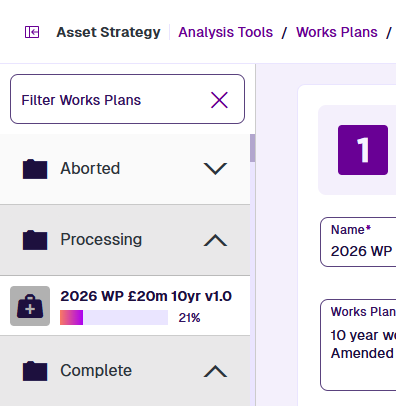
When the build finishes, you'll receive an email notification and the Works Plan will be moved to the Complete or Aborted folder accordingly.
To edit a processed Works Plan, open it and then select Clone in the top-right corner. This creates a copy of the Works Plan that you can edit and build.