Create a Treatment
Define an asset treatment and its effects
To create and configure a new Treatment, select Analysis Tools > Treatments in the left panel, then Create Treatment in the top-right corner.
A Treatment represents a physical procedure to improve an asset's condition. Fill in the form to describe this procedure, the Asset Groups it applies to, the associated costs, and the effect it has on specific Condition Parameters. Fields marked with an asterisk * require a value to continue.
To save the new Treatment, select Create on the right.
Treatments use the following features, so make sure they're set up correctly before getting started:
Details
Configure the Treatment's priority, length constraints and subsection merging method:
-
Name * - enter a distinct name that clearly identifies the Treatment.
-
Colour * - choose a colour for the Treatment. This helps to identify the Treatment in Layers and Reports.
-
Feature Code * - choose the type of asset the Treatment applies to. This filters the Asset Groups and Condition Parameters that can be picked in later sections.
Feature Codes
A Feature is a physical part of the road. For full details, consult the UKPMS user manual.
Feature Name Feature Code Description Carriageway CW The main running surface for vehicles. Footway FW Areas designated for pedestrian use. Kerb KB The kerb or channel line (often includes drainage). Verge VG Grassed or soft-landscaped areas. Cycle Track CT Dedicated paths for bicycles. Asset Strategy only: Bridge BR Bridge structures. White Markings WM Painted road markings. -
Critical - if enabled, the Treatment will always be selected for subsections that trigger it, subject to budget. In asset sweating scenarios (where Treatments are deferred to prolong asset lifespan), the Treatment will always be flagged as Last Chance and therefore guaranteed to be selected.
-
Major - enabled by default. The Treatment won't be selected on any triggering subsections that have planned works (as defined by the Works Layer of a Treatment Set). If disabled, the Treatment is considered Minor, and will only be excluded if a subsection has planned work in the current year.
-
Treatment length min (m) * - specify a minimum length in metres, e.g. the length required for the Treatment to be cost-effective. It must be greater than or equal to the Subsection Length in a Treatment Set's Details. If the length of a subsection - or a scheme of merged subsections - is shorter than this, the Treatment won't be triggered.
-
Treatment length max (m) * - specify a maximum length in metres, e.g. the length of road that can be closed to the public at any one time. Subsections will not be merged if their combined length exceeds this, even if the Merge when setting is fulfilled. However, this setting is ignored when Whole section merge is enabled in a Treatment Set's Details.
infoIf you set the min and max length to the same value, this will result in fixed-length Treatments that are never merged (unless they cover 99%+ of the Section).
-
Merge when * - to create realistic schemes that fit within the Treatment length range, adjacent triggered subsections will be merged into single uninterrupted lengths. Separate subsections may also be merged using the chosen method:
-
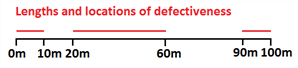
Efficiency - used by default. If the triggered subsections would comprise over
Xpercent of the potential Treatment scheme after merging, then merge them. In the example below, 60 m of the 100 m length is defective. Therefore, an efficiency of 60% or higher would include the entire 100 m in the merged Treatment scheme. -
Proximity - if triggered subsections are within
Xmetres of each other, merge them. In the example below, each defective subsection is less than 40 m from the next. Therefore, a proximity of 40 m would include the entire 100 m in the merged Treatment scheme.
By default, merging is only performed along the length of an individual XSP, e.g. road lane. For other settings that affect merging, see Treatment Set Details.
Merging rules
During the merge process, the following rules are observed:
- Any Treatment can be merged across a blank subsection that doesn't trigger anything.
- A parent Treatment can be merged across a child Treatment.
- A child Treatment cannot be merged across a parent Treatment.
- The merged Treatment scheme must be valid for all the Asset Groups it spans.
For the example illustrated below, imagine a Treatment Set where Treatment
Ais the parent of TreatmentB.The first two
BTreatments can merge across the blank subsection (rule i). However, they cannot merge with the thirdBTreatment because they cannot overwrite the parentATreatment (rule iii). The final twoATreatments can merge across the childBTreatment (rule ii).In all cases, a subsection can only be overwritten if its Asset Group is valid for the merged Treatment (rule iv). It may be that
AandBare bituminous Treatments and the blank subsection is concrete. In that case, the blank subsection cannot be overwritten with TreatmentB. info
infoIn asset sweating scenarios, if any merged subsections are flagged as Last Chance, the entire merged scheme will be flagged as such.
-
-
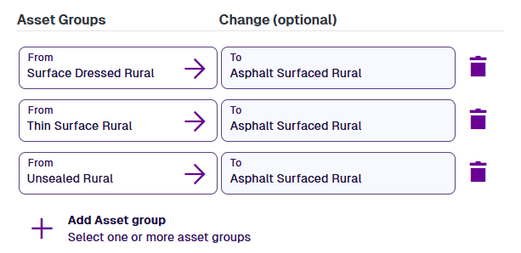
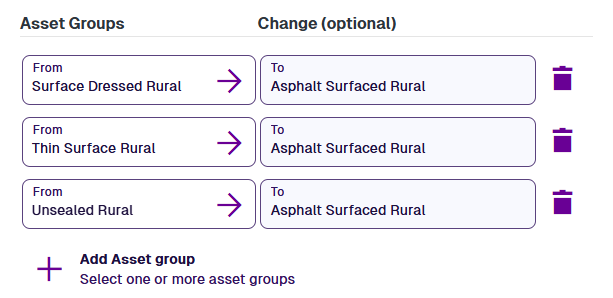
Applies to * - select one or more Asset Groups that the Treatment can apply to. Select Add Asset Group, make your selection and then select Save. To remove an added Asset Group, select Delete.
In some situations, you may want to move assets into another group after they've been treated, e.g. their material composition has changed. Select the Change field and choose a destination Asset Group from the list.
Costing
Define fixed and unit costs for the Treatment over multiple financial years, along with expected emissions:
-
Cost type * - choose whether the Treatment's costs are Linear (per m) or Area (per m2).
-
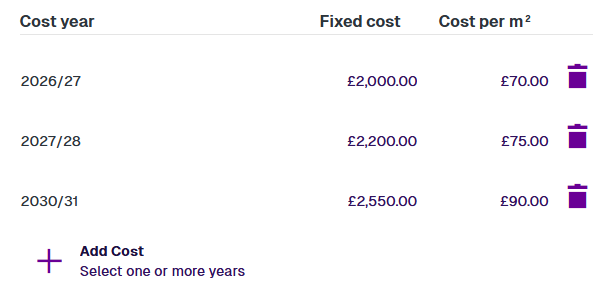
Costs * - specify Treatment costs for one or more financial years. Select Add Cost, make your selection and then select Save. To remove an added year, select Delete.
For each added year, you can specify a combined fixed cost estimation (e.g. equipment, traffic management) and a combined unit cost estimation (e.g. materials, labour, fuel).
If a financial year isn't specified, the costs of the previous specified year are used. If the unspecified year occurs before the first specified year, the first year's costs are used. Financial years occurring after the final specified year are calculated using the Inflation rate.
Example details
Financial year Fixed cost Cost per m² Source 2025/26 £2,000.00 £70.00 Automatic 2026/27 £2,000.00 £70.00 Added 2027/28 £2,200.00 £75.00 Added 2028/29 £2,200.00 £75.00 Automatic 2029/30 £2,200.00 £75.00 Automatic 2030/31 £2,550.00 £90.00 Added 2031/32 £2,626.50 £92.70 Inflation rate = 3% 2032/33 ... £2,705.30 £95.48 Inflation rate = 3% 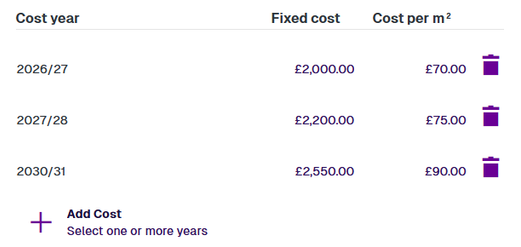
-
Inflation rate (%) * - enter an average inflation rate to estimate costs in future financial years.
-
BCR scale factor * - to inflate or deflate the Treatment's Benefit-Cost Ratio (BCR) score, enter a decimal scaling factor (1.0 = no adjustment). This affects its chances of being boosted or suppressed by others in a Treatment Set, especially if Alternative Treatments is enabled. See Treatment Set Details.
-
CO2 Emission (kg) / NOx Emission (kg) - to model emissions caused by the Treatment, enter a value in kg per m or m2 (depending on the Cost type). If you have emission targets, you can define them in a Strategy.
Effects
Describe how the Treatment will affect the assets being treated.
Asset condition is tracked using Condition Parameters that are initially populated with survey data. When running a Works Plan, these conditions are intelligently deteriorated for subsequent years. If any Condition Parameters for a subsection cross a threshold, it triggers the need for treatment to restore them to desirable levels.
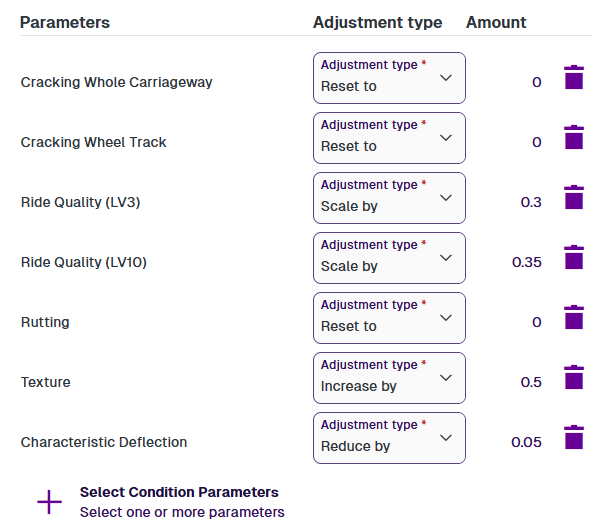
Select one or more Condition Parameters that the Treatment will affect. Select Select Condition Parameters, make your selection and then select Save. To remove an added parameter, select Delete.
For each added parameter, choose the Adjustment type and enter an Amount. The options differ depending on whether the parameter has ascending severity (lower values are better) or descending severity (higher values are better).
Ascending severity
-
Reset to - overwrite the parameter value with the amount.
-
Scale by - multiply the parameter value by an amount between
0and1. -
Reduce by - subtract the amount from the parameter value.
Descending severity
-
Reset to - overwrite the parameter value with the amount.
-
Scale by - multiply the parameter value by an amount that's
1or higher. -
Increase by - add the amount to the parameter value.