Create an Opex Treatment
Define an operational maintenance cost
To create and configure a new Treatment, select Analysis Tools > Treatments in the left panel, then Create Opex Treatment in the top-right corner.
An Opex Treatment represents an operational expenditure of untreated assets, such as patching, pothole filling, or another reactive maintenance cost. Think of it as a "pseudo-Treatment" that exists purely to track those costs, rather than a physical procedure.
In a Works Plan, each generated scenario typically leaves some asset subsections untreated, due to budget or emission constraints. If these untreated subsections are in poor condition, they will probably require reactive maintenance during the year, in the form of an Opex Treatment. To control which untreated subsections are included, add the Opex Treatment to the relevant Treatment Set, where you can define trigger rules based on Condition Parameter values.
When a Works Plan has completed, select the OPEX Treatment Costs monitor in its Summary Report to view the estimated operational expenditure for each financial year, based on the untreated subsections that Opex Treatments were triggered on. Be aware, this cost is purely indicative and won't be deducted from the Budget of a Works Plan.
Fill in the form to describe these costs. Fields marked with an asterisk * require a value to continue. To save the new Opex Treatment, select Create on the right.
Treatments use the following features, so make sure they're set up correctly before getting started:
Details
Configure the Opex Treatment's appearance and the assets it applies to:
-
Name * - enter a distinct name that clearly identifies the Opex Treatment. It'll be suffixed with
[Opex]automatically. -
Colour * - choose a colour for the Opex Treatment. This helps to identify the Opex Treatment in Layers and Reports.
-
Feature Code * - choose the type of asset the Opex Treatment applies to. This filters the Asset Groups that can be picked.
Feature Codes
A Feature is a physical part of the road. For full details, consult the UKPMS user manual.
Feature Name Feature Code Description Carriageway CW The main running surface for vehicles. Footway FW Areas designated for pedestrian use. Kerb KB The kerb or channel line (often includes drainage). Verge VG Grassed or soft-landscaped areas. Cycle Track CT Dedicated paths for bicycles. Asset Strategy only: Bridge BR Bridge structures. White Markings WM Painted road markings. -
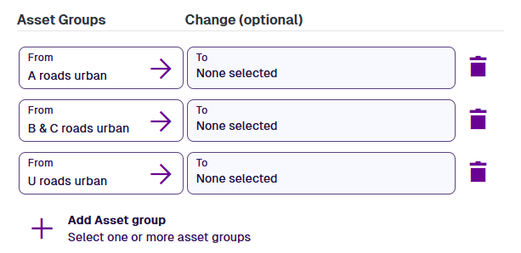
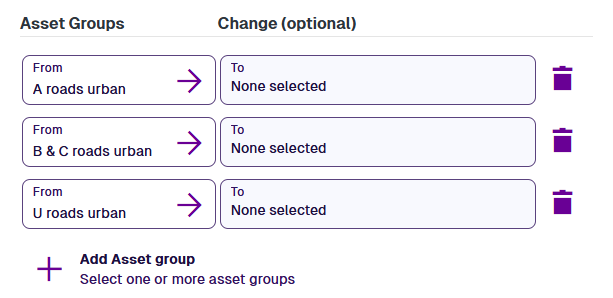
Applies to * - select one or more Asset Groups that the Opex Treatment can apply to. Select Add Asset Group, make your selection and then select Save. To remove an added Asset Group, select Delete.
Costing
Define fixed and unit costs for the Opex Treatment over multiple financial years:
-
Cost type * - choose whether the Opex Treatment's costs are Linear (per m) or Area (per m2).
-
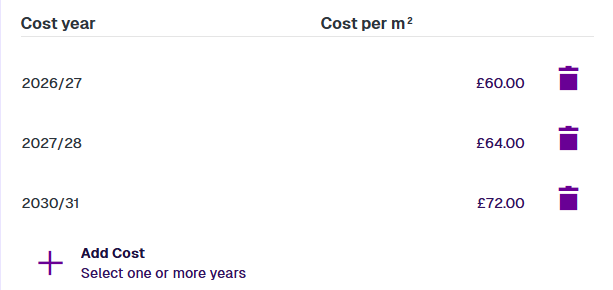
Costs * - specify a cost for one or more financial years. Select Add Cost, make your selection and then select Save. To remove an added year, select Delete.
For each added year, you can specify a combined unit cost estimation, e.g. materials, labour, fuel.
If a financial year isn't specified, the costs of the previous specified year are used. If the unspecified year occurs before the first specified year, the first year's costs are used. Financial years occurring after the final specified year are calculated using the Inflation rate.
Example details
Financial year Cost per m² Source 2025/26 £60.00 Automatic 2026/27 £60.00 Added 2027/28 £64.00 Added 2028/29 £64.00 Automatic 2029/30 £64.00 Automatic 2030/31 £72.00 Added 2031/32 £74.16 Inflation rate = 3% 2032/33 ... £76.38 Inflation rate = 3% 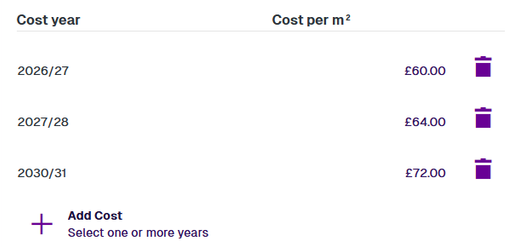
-
Inflation rate (%) * - enter an average inflation rate for calculating future financial years.