View Treatment Set Results
Visualise initial Treatment schemes on the map
Once a Treatment Set is successfully built, you can view the results as a Layer on the map. This provides a visualisation of the initial Treatment schemes that were generated. It can provide useful feedback for refining the Treatment Set settings and gives you an idea of what a full Works Plan may involve.
A completed Treatment Set is an unconstrained list of works, before any Budgets, Priorities or Strategies are applied. Therefore, treat the results as an initial preview!
To learn more about using Layers in Explorer, see Layers.
View results in Explorer
To view the results of a Treatment Set:
-
Select Analysis Tools > Treatment Sets in the left panel.
-
Open the Complete folder and select a Treatment Set.
-
Select View in Explorer in the top-right corner.
The generated Treatment Set Layer is activated in Explorer and appears on the map.
Network Level
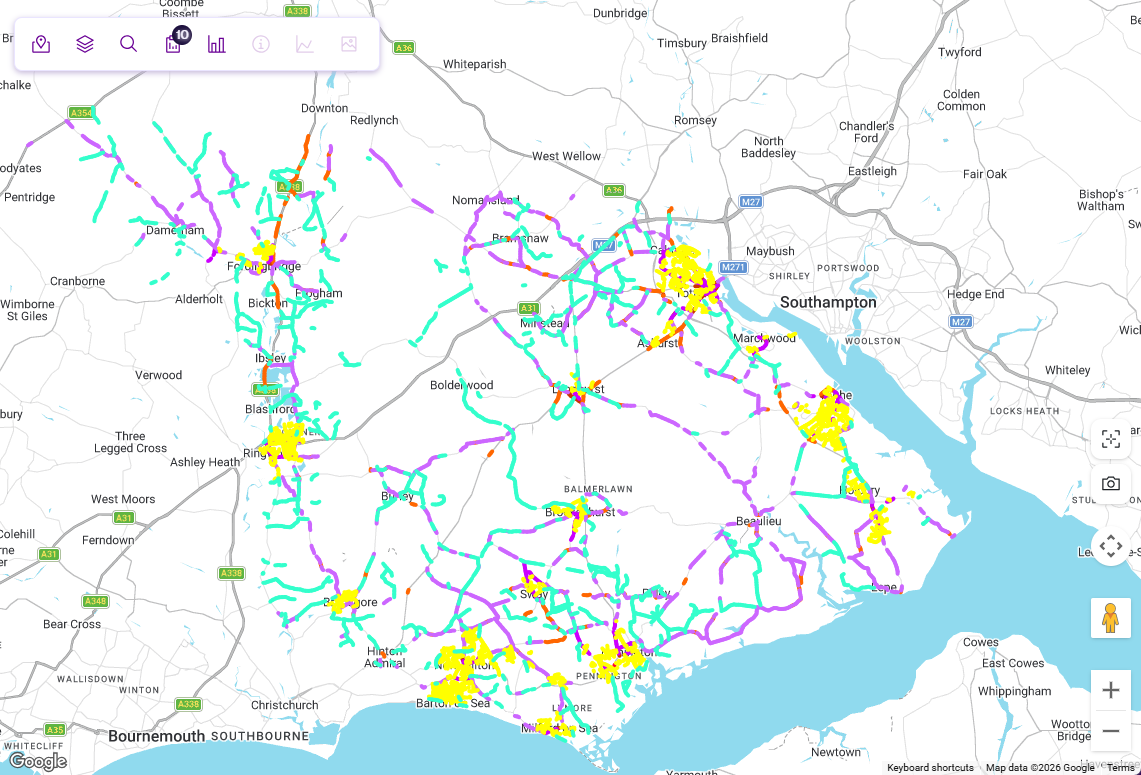
In Explorer, navigate the map at Network Level to see an overview of the colour-coded Treatment schemes generated for your assets. To see the colour key, select Layers in the Explorer toolbar, open the Treatment Set folder, then hover over the corresponding Layer.
Select up to six Layers in the dropdown to overlay their data on top of each other. This makes it possible to compare the Treatment Set's results with other datasets, such as:
-
the refined results of a Works Plan
-
other Treatment Sets
-
condition data
-
statistical data, e.g. accidents, traffic flow
To filter all Layer data by Subnetwork, select one in the Networks folder of the Layers dropdown.
Section Level
To see the Treatment scheme details for a specific Section:
-
Select the Section you want to examine.
-
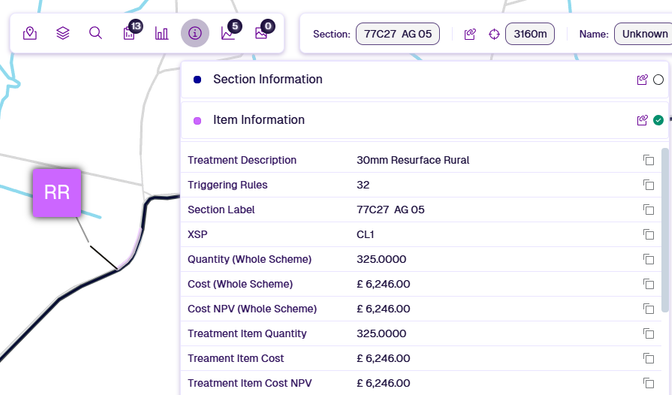
Item pop-outs will appear for each Treatment scheme generated along the Section. Select the pop-out you want to examine.
-
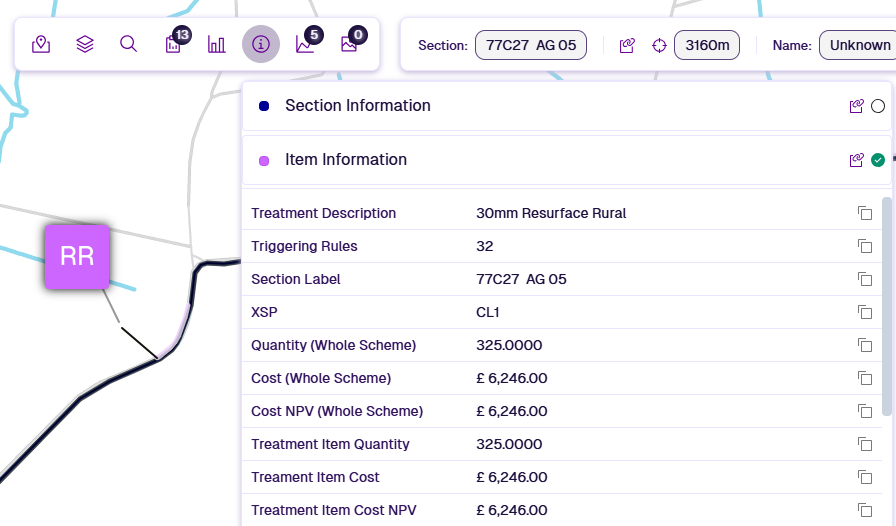
To view detailed information about the selected Treatment scheme, select Section Details in the Explorer toolbar, then select Item Information.
-
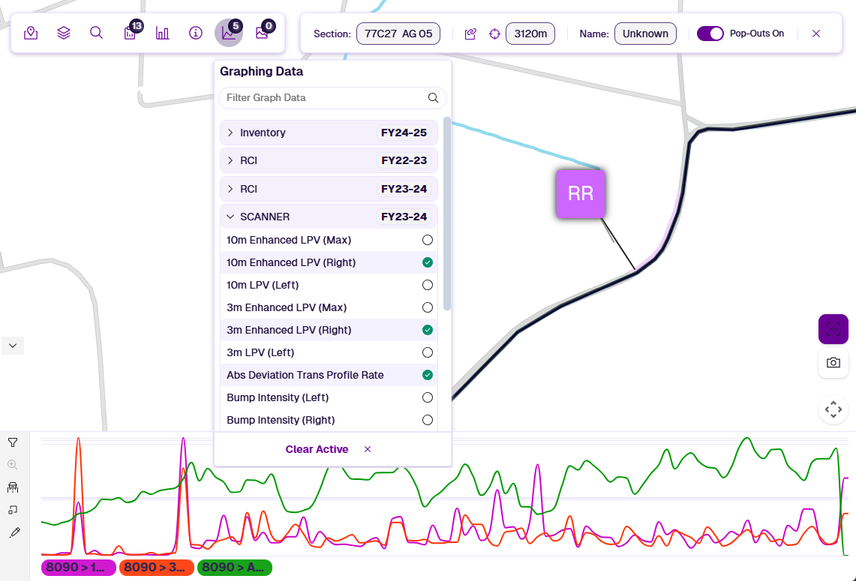
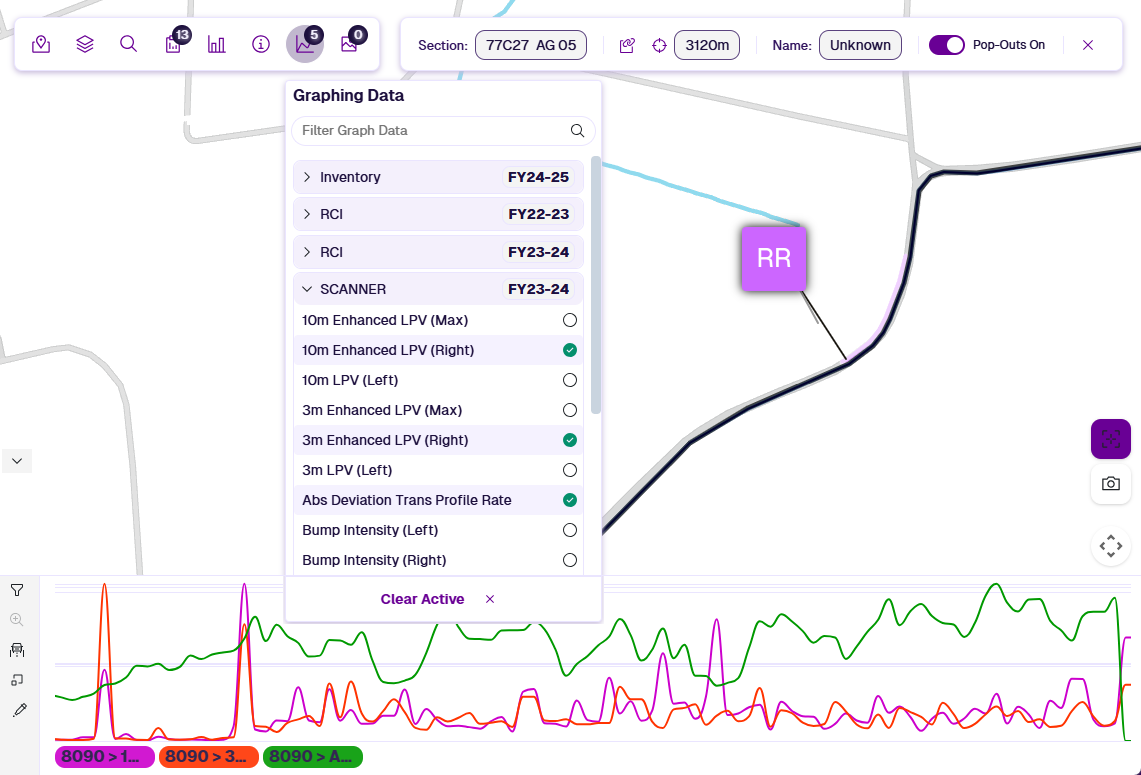
To see the Condition Parameter values of the active Section and compare them to the Treatment schemes, select Graphing in the Explorer toolbar. Select Imagery to view any available photos of the area.