Manage Budgets
Access and organise your Budgets
Budgets and Sub-budgets represent the funds available for improving the condition of your Network assets. Create any number of them to use in your Works Plans.
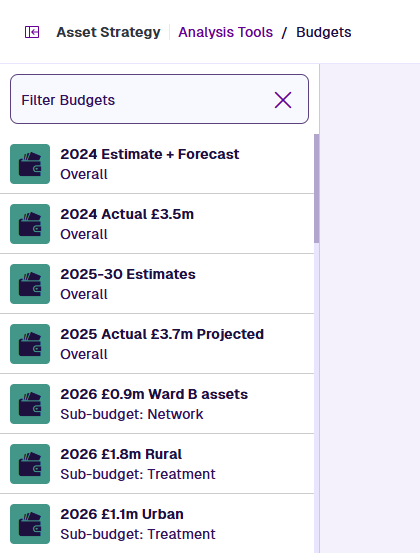
To browse the Budgets in your company project, select Analysis Tools > Budgets in the left panel.
Budgets are listed on the left. To filter the list, type within its top search box. Select Clear to remove the filter.
Open a Budget
Select a Budget in the list to open its settings.
Edit the Budget
Scroll down to view each settings section of the current Budget. To jump to a particular section, select it on the right.
To edit any of the Budget's settings, select the relevant field and then type or choose a new value for it. To save your changes, select Save on the right. Alternatively, select Close in the top-right corner to close the Budget without saving.
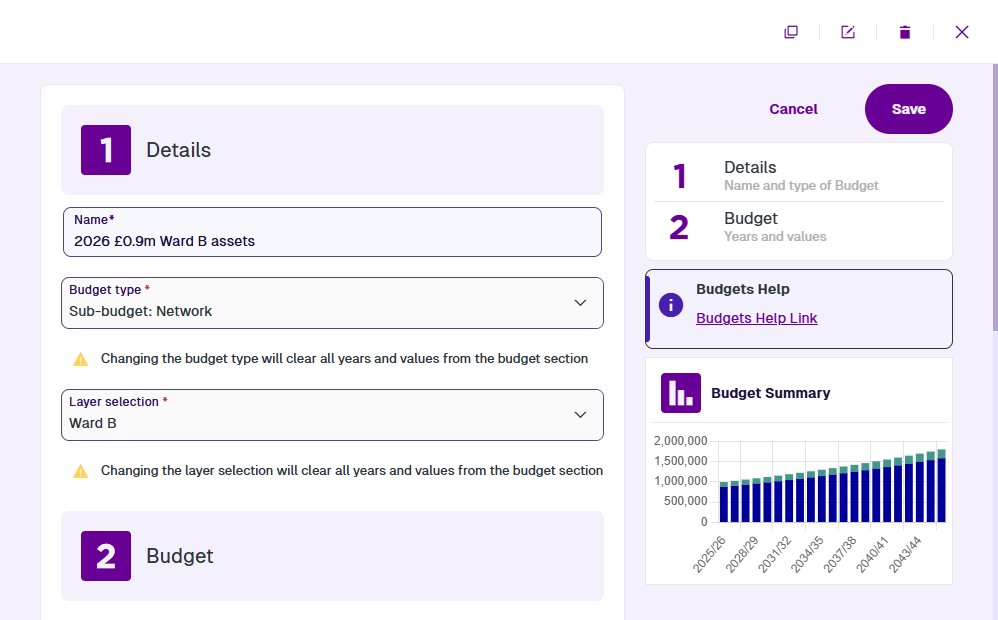
If a Sub-budget references a historic Network Layer that was archived, its details can no longer be edited.
Budget actions
To perform an action with the current Budget, select one in the top-right corner:
-
Clone - start creating a copy of the current Budget. It'll have the same configuration as the original, except for any obsolete/archived settings. Edit any fields as needed and then select Create at the bottom.
-
Rename - change the name of the Budget.
-
Delete - permanently delete the current Budget. If this fails with an error (E1612882732), identify any Works Plans using the Budget and delete them before retrying.
-
Close - exit the Budget without saving.